


Instagram comments not showing? Well, you’re working hard to boost engagement on your posts. But then you notice comments aren’t gone. You ask, “Why can’t I see comments on Instagram?”
This matters. No comments mean no conversations—and that stalls your account’s growth. That’s a problem you want to fix.
The good news: the solution is simple. In this article, we’ll explain why this happens and show you how to fix it. Ready? Let’s get started.
Key Takeaways
- Primary Causes: Most missing comments happen because of Instagram’s server outages, spam filters, or the “Top Comments” sorting..
- Android vs. iOS Fixes: If you’re on Android, you might need to clear the cache in your settings. For iPhone, you can’t do that, so you’ll need to offload the app or delete and reinstall it.
- Passive vs. Active Fix: Some problems you just have to wait out, like server outages, shadowbans. Other times, you need to take action like checking the “Hidden Comments” folder, or changing filter settings.
- Permanent vs. Temporary Loss: If Instagram hides comments through its algorithm, you can often find them by adjusting the sort settings. Comments from blocked users typically reappear once you unblock them, but glitches may prevent this.
- Connection & Updates Matter: You need a steady internet connection, at least 3-5 Mbps, and the latest app version. If your app is outdated or your internet is slow, comments might not sync properly.
Why Can’t I See Comments on Instagram
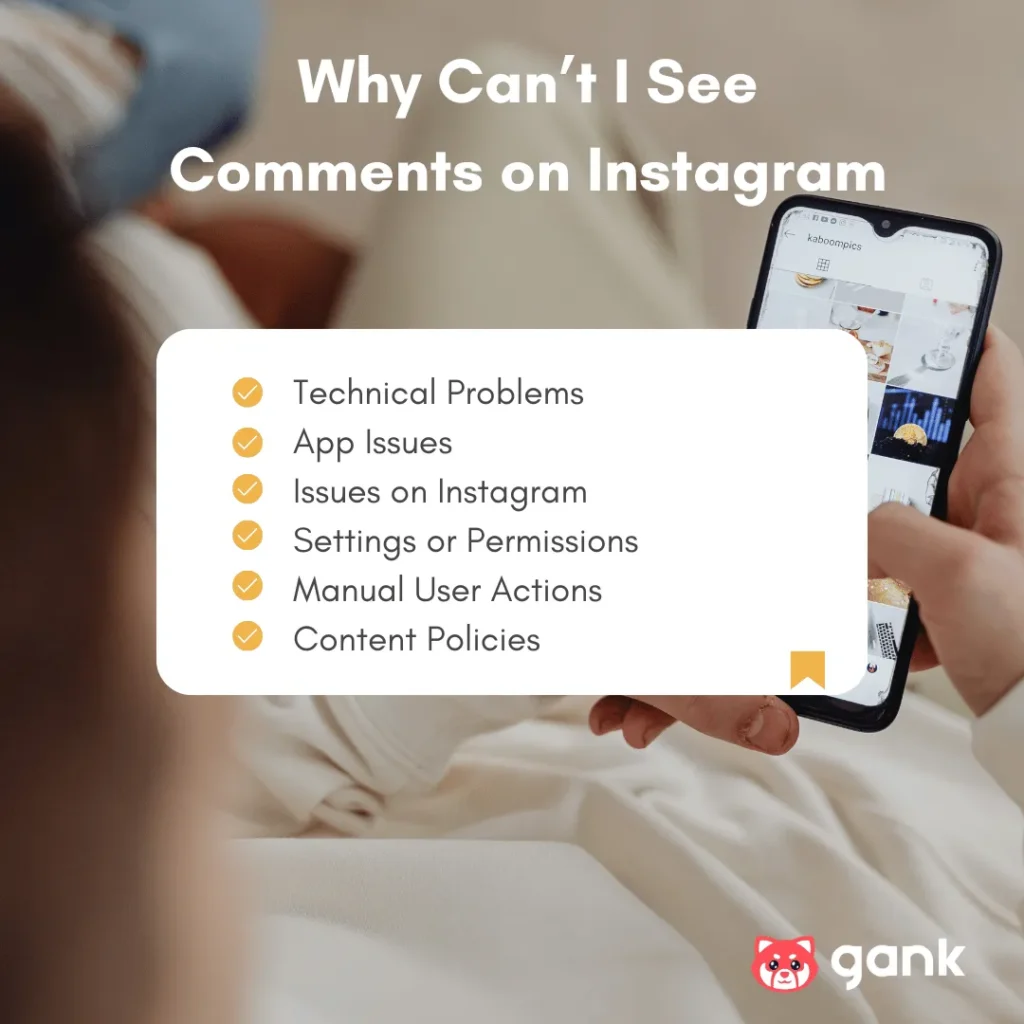
There are many reasons why Instagram comments are not showing; it can be due to:
- Technical problems
- App issues
- Issues on Instagram
- Settings or permissions
- Manual user actions
- Content policies
Let’s break it down in more detail.
1. Instagram’s Server Is Down
Instagram often faces outages caused by server problems or maintenance. The last major outage occurred in December 2025, when users couldn’t log in or access features.
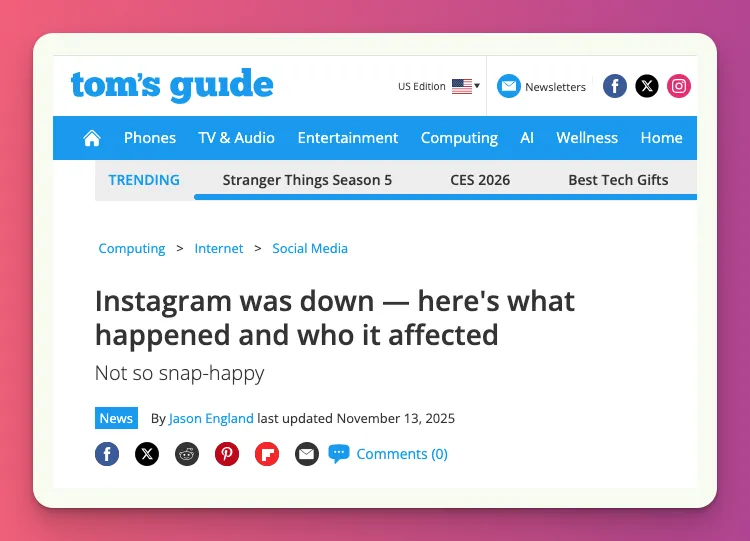
When Instagram’s servers are down, comments won’t load, regardless of what you try. These outages usually last from a few minutes to several hours, depending on the problem.
2. Glitches on Instagram
“I’ve already updated my app, so why can’t I see comments on Instagram?”
Sometimes, a new update introduces a “regression bug.” It’s a software error that disrupts functions like commenting. It may happen to all Instagram users or some of them.
App glitches can also come from Instagram servers. Routine maintenance may cause brief hiccups, and some server downtime can lead to temporary outages.
3. Your Instagram App Is Outdated
Another technical issue why you can’t see comments on Instagram is that your app is out of date.
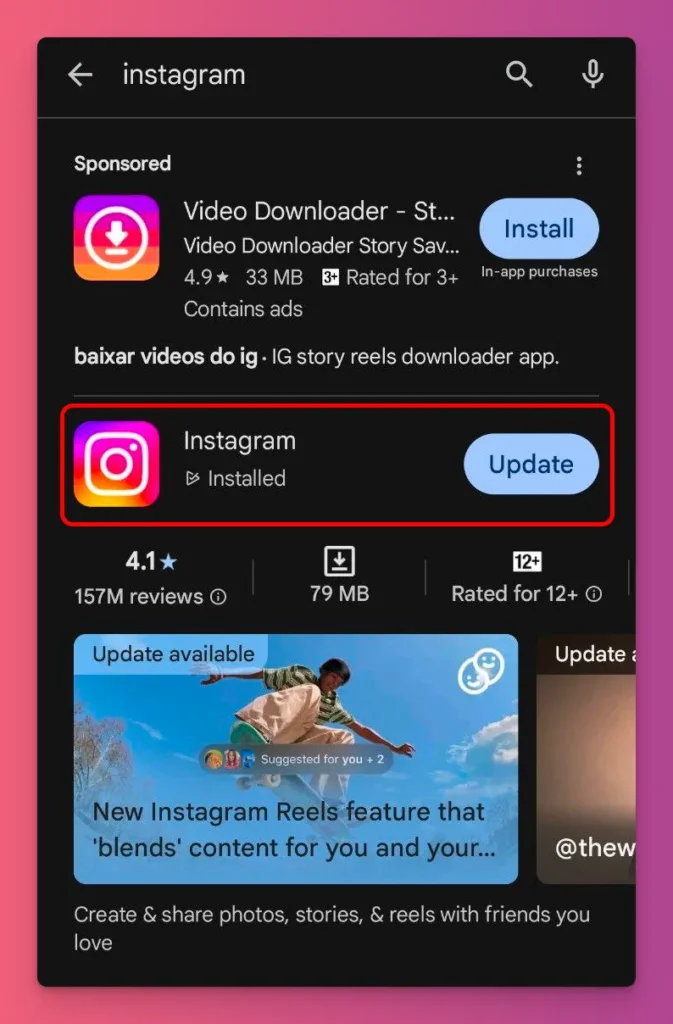
Updates do more than add new features. They also fix problems and help the app run better. So, when you’re using an old version, some parts of the app, like the comments, might not work right.
4. You Have Cache Problems
Sometimes, you can’t see comments on Instagram if your cache is full. This often happens on Android phones.
Instagram stores temporary files in cache memory to speed up loading and cut delays. When these files become corrupted or grow too large, they can block content from appearing correctly.
This technical glitch hides comments, even though the data stays safe on Instagram’s servers.
5. You Have Network Connection Issues
Instagram comments are stored on remote servers, not on your device. To see them, your app sends a real-time internet request.
A weak Wi-Fi signal or slow mobile data can prevent your request from going through or cause it to time out.
Basic text uses little data, but features like high-resolution avatars and interactive stickers in comments need at least 10–20 Mbps.
6. You’re Using a VPN or Proxy
Instagram detects when you’re using a VPN or proxy to hide your location. Some VPN IPs are flagged by Instagram’s security system due to spam activity.
When you use a flagged VPN, Instagram may block some features to protect itself. For example, comments might not load, even if everything else seems normal.
7. Instagram’s Comment Filter Hides New Comments
Instagram sorts comments by Most Relevant. Its algorithm uses your Relationship Graph, your past interactions, DMs, and profile visits, to predict which comments you’ll like most.
As a result, comments from users you don’t follow or rarely interact with tend to fall to the bottom. Many are hidden in a “Hidden” folder or behind a “View More” link.
8. Your Account Is Shadowbanned
A “ghost ban” or shadowban is when Instagram hides your account’s activity. Usually, it happens if you as a content creator break the Community Guidelines or use third-party apps that aren’t allowed.
Your comments might seem like they’re missing, but really, Instagram is just hiding what you do for a while. It’s a restriction, not a glitch.
9. A Comment Gets Flagged for Spam
Instagram’s security system uses real-time AI to scan comments for spam. It detects suspicious links, repetitive phrases, and bot-like engagement that violate API rules.
When it spots these patterns, the comment is filtered immediately. Spam detection often removes or hides comments before users see them. This creates a gap: notification counts may be higher than visible comments.
10. You Hit Instagram’s Comment Limit
Instagram limits how often you can comment, like, follow, and perform other actions. These rules prevent spam.
If you reach the comment limit, Instagram temporarily blocks you from posting new comments and may freeze when you try to view comments. The comment box might stop responding.
11. It Has Words or Phrases You Want to Hide
In your Instagram settings, you can turn on filters to hide comments with certain words or phrases to keep out unwanted conversations.
With comment filters, you can create your own list of words you don’t want to see in the comment section. But this can be the reason why Instagram comments are not showing.
Read:
12. You Turned Off Commenting
Whether you’re sharing a story or a regular Instagram post, you can choose to turn off comments. And you can do this either before you upload or after your post is live.
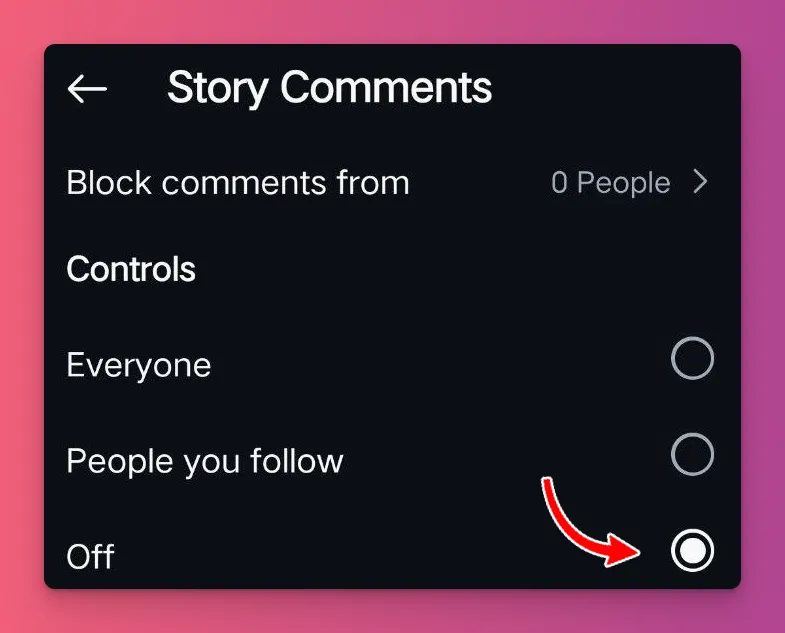
This gives you more control over the conversation. But hidden comments can be an issue for content you hope will get engagement.
When you turn off comments, it’ll hide the comment box and existing comments on that post until you turn comments back on.
Related: How to Delete Comments on Instagram
13. You Block Someone on Instagram
Did you block someone on Instagram? If you did, Instagram’s algorithm stops any data exchange between your account and the blocked account.
Yes, you both stop seeing each other’s content. And any comments they made before will disappear from your view. This can be the reason why Instagram comments are not showing from that person.
Instagram Comments Not Showing: How to Solve It
Now that you know the reasons, you likely have ideas on how to fix the problem, right?
1. Check if Instagram’s Server Is Down
If Instagram’s servers are down, there’s nothing you can do to fix it. Outages hit everyone at once and clear up when Instagram’s technical team resolves the issue.
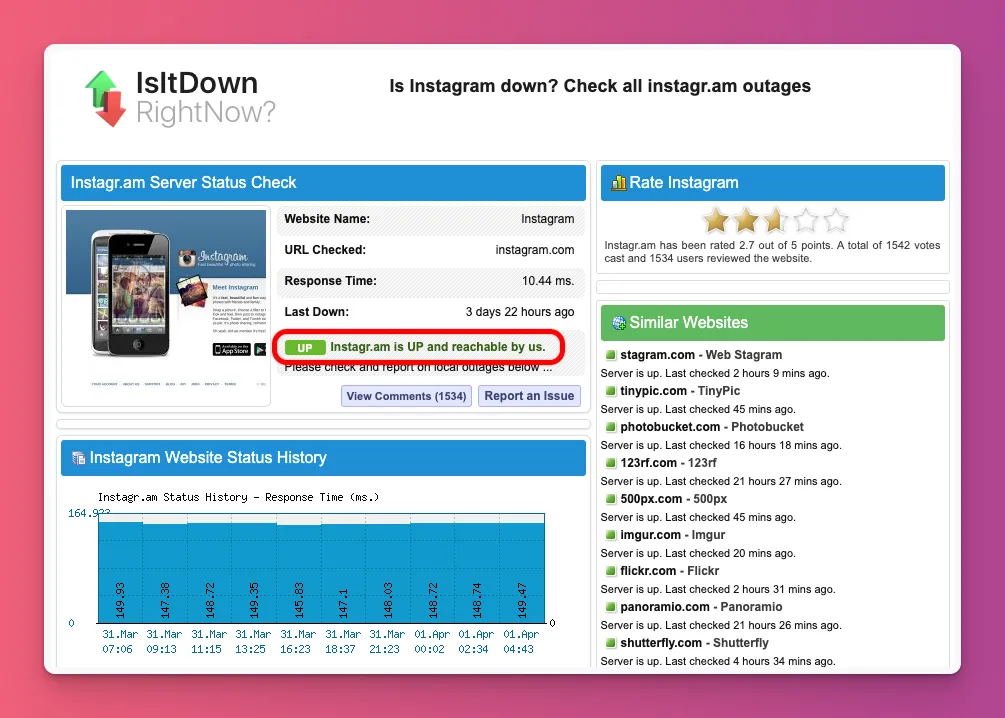
Before troubleshooting your device, check if it’s a server problem:
- Check server status — Visit Downdetector or Is It Down Right Now to see if Instagram has server issues. Over 1,000 reports in 15 minutes suggest problems.
- Check Meta’s status page — Visit metastatus.com for official updates during outages. If they’ve acknowledged the issue, they’re working on it.
- Test on desktop — Open instagram.com on a computer. If comments still won’t load, it could be that Instagram’s comment servers are the issue.
Server outages usually last 30 minutes to 2 hours. A March 2025 outage affecting 19,000 users was resolved in 90 minutes.
2. Reinstall the Instagram App
If Instagram glitches after a bad update or corrupted files, restarting forces it to reload. This clears temporary errors in your device’s RAM that can stop comments from appearing correctly.
To reset Instagram cleanly:
- Force Stop the App — On Android, go to Settings > Apps > Instagram > Force Stop. On iOS, swipe up and fully close the app card.
- Check for Stuck Updates — Sometimes, Instagram gets stuck updating in the background, causing server errors and hiding the comment feed.
- Do a Clean Reinstall — Uninstall Instagram. Restart your phone. Then, download the latest version from the App Store or Google Play. This clears corrupted cache or data.
3. Update Your Instagram App
It’s always recommended to keep your Instagram app updated to the latest version. So even if you’re not having any issues with comments, you need to do so.
- On Android, you can go to Google Play Store > Search for Instagram > Check if an Update is available > Tap Update and wait for the process.
- On iOS, you can go to the App Store > Tap your profile > Check Pending Updates > Tap Update to install the latest version.
If updating Instagram doesn’t fix the problem with Instagram comments not showing, try deleting the app and then reinstalling it on your phone.
4. Clear Your Cache
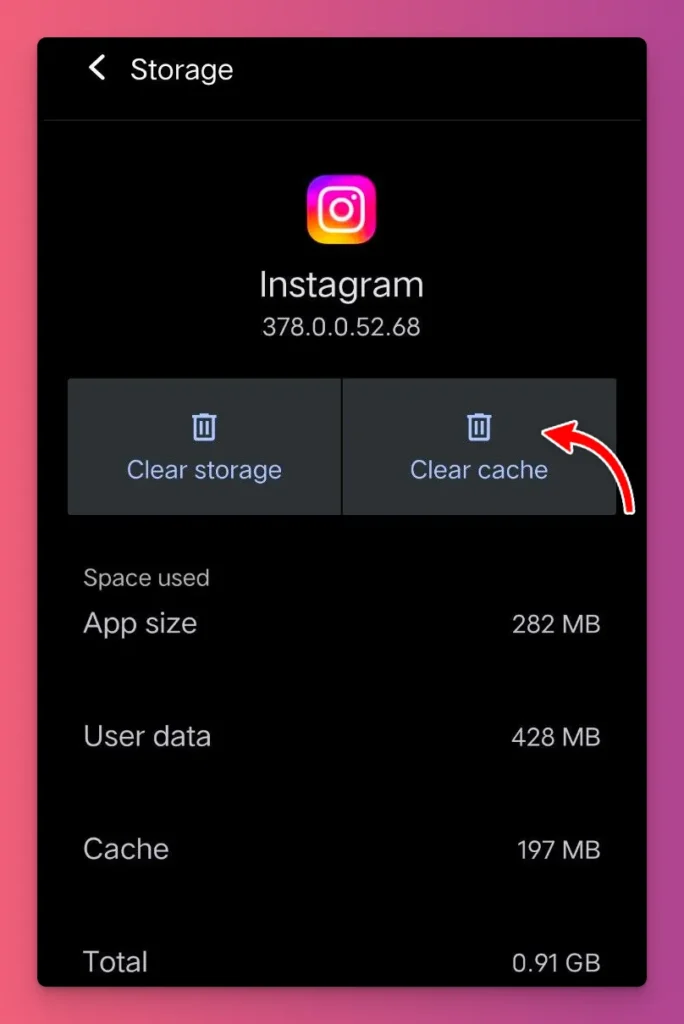
If your internet connection is fine, the problem might be with the cache. To see if this is the issue, you can follow these steps:
- Open your phone’s Settings — On Android or iOS, go to your system Settings and tap on Apps.
- Choose Instagram — Find Instagram in the list, then tap on Storage & Cache.
- Clear the cache — You can just tap Clear Cache, next to Clear Storage, and wait a moment.
- Reopen Instagram app — Close the Instagram app and then open it. Check if comments are now showing.
If you use a browser like Google Chrome, you can clear your browsing data by following these steps: Go to Settings > Privacy and security > Delete browsing data > Cached images and files > Delete data.
5. Check Your Internet Connection
The first thing you should do when you can’t see comments on Instagram is to check your internet connection. Basically, what you need to do is:
- Turn your connection off and on — Switch off your Wi-Fi or mobile data for a few seconds, then turn it back on. This can help your device find a better signal if it’s stuck on a weak one.
- Try a different connection — If you’re on Wi-Fi, turn it off and switch to your mobile data to find out if the issue is with your Wi-Fi, or vice versa.
- Get a better signal — Look at the Wi-Fi icon or the bars on your phone. If the signal is weak, move closer to the router or find a spot with a stronger signal.
- Restart your modem — Unplug your modem for 30-60 seconds and then plug it back in. Restarting can fix network issues and resolve stuck connections.
- Test your internet speed — Check your internet speed with a website like speedtest.net. 3 to 5 Mbps is enough for basic access on Instagram.
6. Disable Your VPN or Proxy
Instagram flags VPN and proxy IPs as suspicious. If you use these masked IPs, it may cause temporary restrictions on features like instagram comments:
These are things you need to do:
- Turn off your VPN — Go to your phone’s Settings and turn off the VPN completely. This lets the instagram app connect directly to the instagram server, preventing any ghost ban triggers from shared IPs.
- Clear Instagram’s Cache — After disabling the VPN, go to Settings > Apps > Instagram > Storage > Clear Cache. This clears the cache/data that stored the restricted visibility state during the VPN.
- Use Mobile Data Instead — Switch to your carrier’s cellular network from Wi-Fi with a VPN. This gives a unique IP that verifies your user account identity and removes the VPN block.
- Whitelist Instagram — For users needing privacy, use “Split Tunneling” to exclude Instagram from the VPN.
7. Switch to “Newest first” Comments
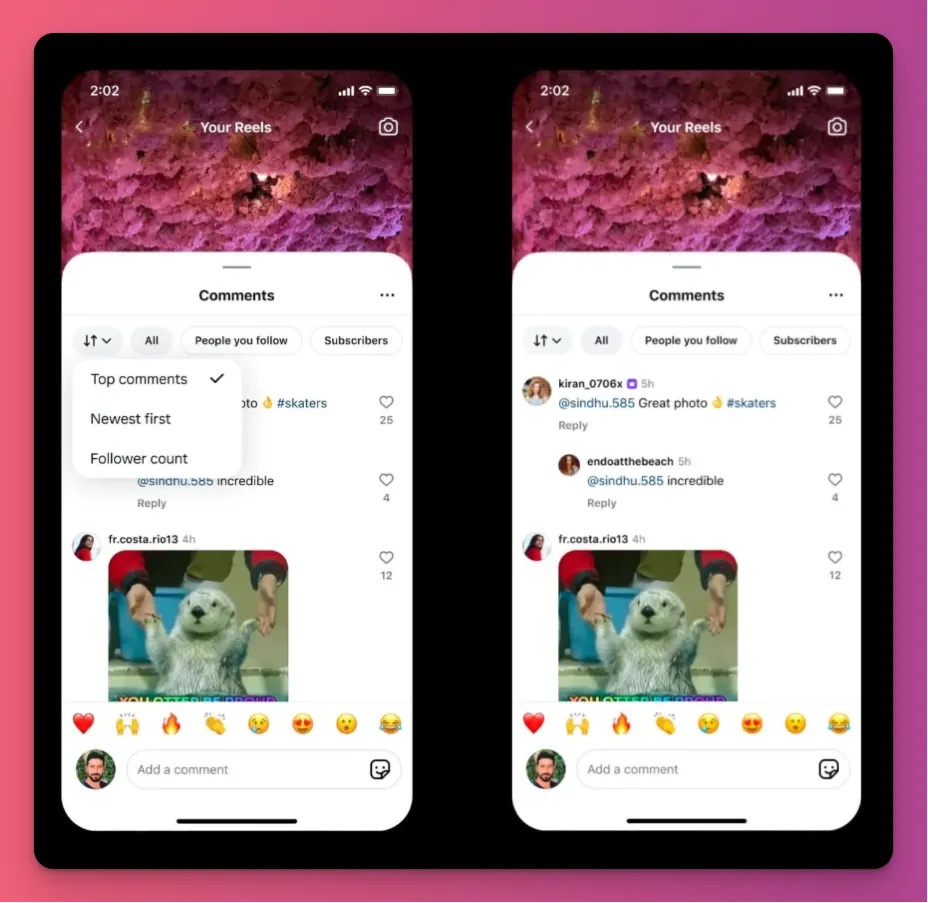
Instagram rolled out a new comment update for creators with over 100K followers. Now, it shows “Top Comments” at the top, which can hide the new ones. To see the latest comments, try this:
- Look for a Sort Option — Open the comments on a post. On supported accounts and regions, you might see a dropdown menu or filter icon at the top of the comments.
- Choose “Newest First” — If you see it, select “Newest First” to view comments in order. Keep in mind, this feature might only be available for creators with 100K+ followers.
- Scroll to Find Recent Comments — After switching, comments will display in the order they were posted, so you can see engagement that the “Top Comments” filter might hide.
8. Wait Out Shadowban
When Instagram shadowbans your account, your visibility and engagement drop. The only fix is patience. Wait for Instagram’s algorithms to reevaluate your activity.
Here’s what to do if you’re shadowbanned and Instagram comments are not showing:
- Freeze Everything — Take a break from Instagram for 24-48 hours. No posts, comments, likes, follows, or DMs. This show Instagram you’re not a bot.
- Clear Any Automation — Disconnect any third-party apps, bots, or auto-post tools. Instagram can spot those through API tricks.
- Check Your Recent Activity — Check if you were mass-commenting the same text or using banned hashtags. Delete any questionable posts that might have triggered the flag.
- Ease Back In — After 48 hours, start with 1-2 posts per day and normal engagement. Monitor your analytics to see if reach returns.
9. Check Hidden Comments Folder
Instagram keeps filtered comments in a separate folder instead of deleting them. You’ll need to check that folder manually to see if your missing comments are there. Here’s how to find it:
- Open Your Post — Go to the post where comments seem to be missing.
- Scroll to the Bottom — Scroll past all visible comments until you reach the very end of the comments.
- Tap “View Hidden Comments” — Look for a link at the bottom that says “View Hidden Comments” or “Additional Comments.” Tap it to open the hidden comments.
- Unhide Individual Comments — Look at each hidden comment. Tap “Unhide” next to the ones you want to see again.
10. Wait for Comment Limit to Reset
Instagram limits commenting to 200-500, liking to 300-500, and following to 200-400 times per hour. Once you hit this limit, comment sections stop loading until the timer resets.
What you need to do:
- Check for Action Block Message — If you see “Try Again Later” when loading comments, you’ve hit your hourly limit.
- Stop All Activity — Don’t like, comment, or follow anything else for at least 60 minute
- CheckYour Usage — If you think you’ve completed over 300 tasks in the past hour, wait for the reset before trying again.
11. Evaluate Your Custom Words Filtering
If you think that custom filters with certain words or phrases might be causing Instagram comments not to show, try reviewing those words.
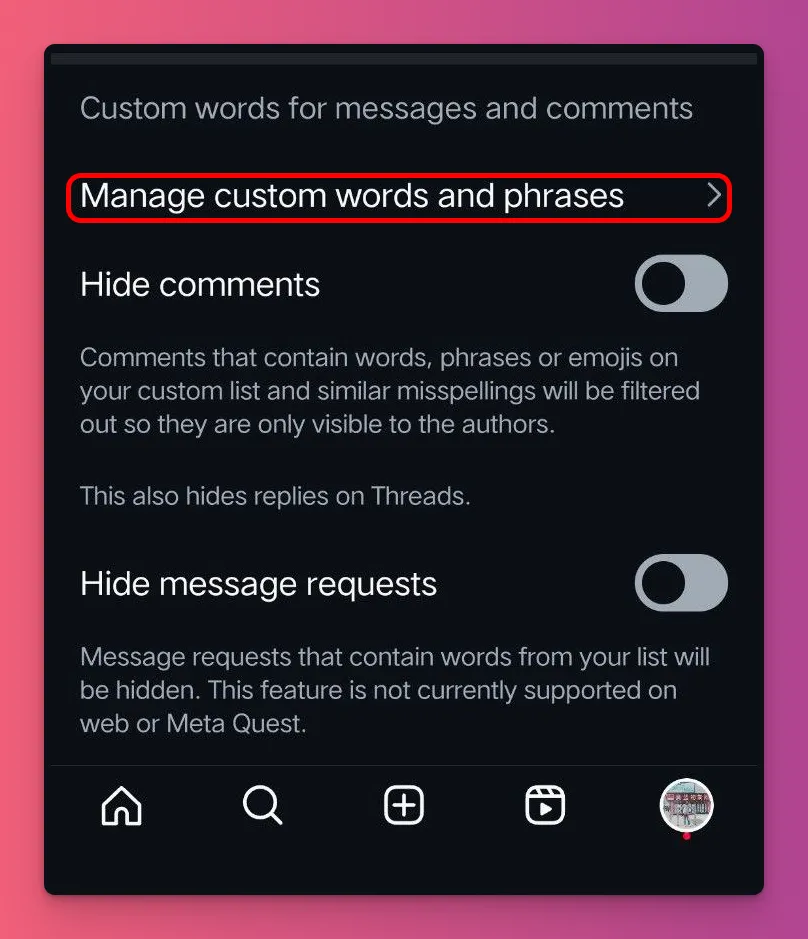
Also, check if you’ve accidentally included words you didn’t mean to add to the filter. To do so, you can follow these steps:
- Open Instagram and go to Settings & Activity
- Tap on Hidden Words, then choose Manage Custom Words or Phrases
- Tap on View Your List to see and review the words and phrases you’ve saved.
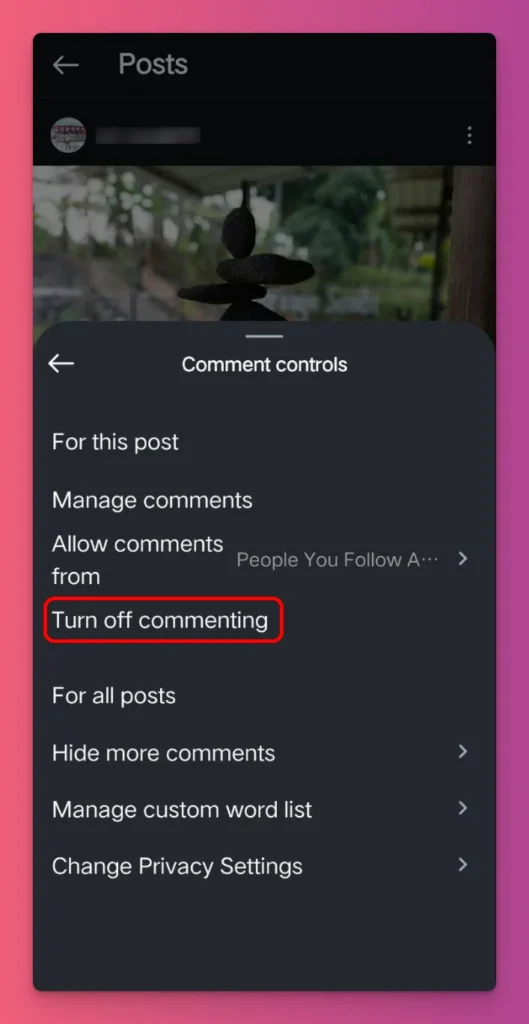
12. Turn On Commenting
If there are no comments on Instagram due to the settings for the comment section, then you need to adjust it. Here are the steps:
- In Settings and Activity, go to Comments.
- Under Who Can Comment, choose Everyone for Posts and Reels, or Stories.
- If you’re okay with GIF comments, make sure to turn on Allow GIF Comments.
If you want to enable comments on a post you accidentally turned off, just go to that post, tap the three dots, and choose Turn on Commenting.
Read:
13. Unblock Commenters or Users
If you accidentally blocked some Instagram users so that you don’t see their comments, then maybe it’s time for you to unblock them. And to do so, you can follow these steps:
- Go to your profile, then tap Settings and Activity
- Choose Blocked to see the accounts you’ve blocked
- Tap Unblock next to the accounts you want to unblock
- Confirm unblocking when prompted
Or, you can also unblock people from commenting. From Settings > go to Comments > Block Comments From > Unblock commenters you don’t want to block.
Read: How to Unblock on Instagram
14. Report a Problem
You can do this if the issues started after you updated the app. So, you’re letting Instagram know what’s going on after their latest update, which can help them understand the problem and fix it in their next update.
To report a problem, Instagram gives you two options. If your shake feature is off, you can:
- Go to Settings and Activity
- Tap Help and then Report a Problem
- Choose Report a Problem without Shaking
- If you’d like, choose Include Log and Continue.
- Describe the issue and add any images that can help explain it.
If you want to use Shake features, just shake your phone while you’re on the section or page where you’re having trouble. Then, tap Report Problem.
Still Can’t See Comments on Instagram?
Instagram comment issues are easier to fix than you think, right? No need to panic or let it cause trouble for your account.
Comments keep your content lively and help it reach more people, thanks to Instagram’s algorithm. If you ignore comments, your reach could drop, and it can hurt your personal brand.
Now that you know how to fix the issue, start talking with your audience in the comments.
We hope you find this helpful. If you’d like more easy tips like these, subscribe to our blog and get ready to learn how to grow as a content creator and earn more from your content.
FAQ About Instagram Not Showing Comments
Why are some comments not visible?
Instagram might not show all comments after updates like the June 2025 change. For creators with over 100,000 followers, the default is “Top Comments.” This setting hides newer comments.
Comments can also be removed if the commenter deletes theirs, if you get blocked, or if spam filters flag them.
Why is Instagram hiding comments?
Instagram hides comments mainly to fight spam, harassment, and guideline violations. Its automated system detects offensive words, repetitive text, and bot-like behavior.
How do I get comments back on Instagram?
To restore comments, clear your app cache (Android) or offload the app (iOS) to fix display issues. Then, change the comment filter from “Top Comments” to “Newest First.” Check “Hidden Comments” at the bottom to unhide flagged ones. Lastly, ensure your internet connection is stable.
What is soft blocking on Instagram?
Soft blocking, or restricting, limits a user’s interactions without fully blocking them. Their comments are only visible to them unless approved, preventing unwanted interactions quietly.
Can Instagram shadowban hide my comments?
A shadowban makes your account less visible. You can still comment, but your posts won’t show up in others’ feeds or notifications. Only you see your comments. It usually lasts 24 to 48 hours.