

To learn from top YouTubers, don’t just study their content ideas. You need to ask: “What editing software do YouTubers use?”
Why? The creative process doesn’t end with a script. It needs the right tools to make it happen. And production quality often makes the difference between a viral hit and a forgotten upload.
So, what’s the best video editing software for YouTube in 2026? Is it still Adobe Premiere Pro or Final Cut Pro? Let’s take a look.
Key Takeaways
- Adobe Premiere Pro remains the one of the best video editing software for YouTube used by top creators like Dude Perfect and Linus Tech Tips. It integrates with Creative Cloud for real-time collaboration.
- DaVinci Resolve gives you pro editing for free, with 90% of Studio features working at no cost. It’s great for creators juggling drafts, like MrBeast’s team and MKBHD’s team.
- Final Cut Pro pushes speed for Mac users with Apple Silicon optimization. This lets creators render videos up to 5x faster than the competition. That’s why Ali Abdaal recommends using it.
- CapCut rules the YouTube Shorts scene with AI auto-captions, silence detection, and viral clip creation. It turns hours of editing into minutes for short-form content.
- Beginner-friendly options like iMovie and Clipchamp cut the barriers. They offer free, simple interfaces so you can focus on storytelling as a beginner, not the technical things.
- The right software fights viewer drop-off, not just aesthetics. Smart edits boost watch time and speed up production.
Why Do YouTubers Need Great Editing Tool?
Do you think famous YouTubers build their brands with random software choices? No. They pick the best video editing software for YouTube for many reasons:
1. Maximize Audience Retention
Your biggest competition isn’t another content creator. It’s the back button. YouTube’s algorithm is all about keeping people watching, so Average View Duration (AVD) comes first.
Good video editing software is the only tool that helps you fight viewer drop-off with real precision.
Whether it’s a quick B-roll overlay, a text pop-up, or a change in focal length, these aren’t just artistic choices. They’re calculated resets for the human attention span.
2. Build Professional Authority
The standard for “good” on YouTube keeps rising. Viewers see higher-quality content from leaders in every niche, and their expectations follow.
To compete at the top, you can’t rely on the default look of basic software. That might work if you just started, but along the way you must adopt better video editing software for YouTube.
Top-tier YouTubers don’t just edit. They craft an atmosphere.
MKBHD’s signature look comes from great YouTube editing workflows paired with custom LUTs, and coloring plugins in Final Cut Pro. That polished tech-review aesthetic didn’t happen by luck.
3. Scale Your Output
To scale your YouTube output, stop thinking like an editor and start like a producer. Move from manual work to AI-powered help.
Modern YouTube video editors like CapCut and Adobe Premiere Pro turn hours of tedious work into seconds of automated processing.
Also, when you hear that MKHBD switched from Adobe Premiere Pro to Final Cut Pro for faster, streamlined rendering, you know what that means.
4. Capture the “Shorts” Algorithm
YouTube Shorts are now driving most channel discovery. Vertical videos get 3-5x more impressions than horizontal ones.
But only YouTube video editing software made for this format can turn your existing footage into algorithm fuel.
Video editors like CapCut Desktop use AI-powered “Smart Reframe” to auto-track faces and keep action centered when converting 16:9 to 9:16.
5. Drive Direct Monetization
Monetization comes down to one thing: trust. Viewers will back a creator who shows real commitment to their craft.
Professional editing tools help you earn that trust by adding smooth, broadcast-quality overlays and CTA graphics.
Ditch a plain link in the description. Use professional video editors to craft integrated “Support the Channel” segments that feel like a natural part of the video, not an abrupt interruption.
What Editing Software Do YouTubers Use? (9 Best Tools)
So, now that you know why picking the right YouTube editing software is important, let’s look at our top picks for 2026:
1. Adobe Premiere Pro
- Price: $22.99/month
- Best For: Any content on YouTube, including team-based video productions, multicam video podcasts, and gaming content
Adobe Premiere Pro continues to be the standard professional video editor for top creators like Dude Perfect, and Linus Tech Tips.
What makes Premiere Pro so dominant as an editing software for YouTube content? It’s not just its powerful editing features. It’s the seamless integration with other Adobe tools.
When you link Premiere with After Effects for motion graphics, Audition for sound design, and Media Encoder for rendering, everything connects smoothly through Adobe Creative Cloud.
That means faster workflows and fewer technical barriers between your creative ideas and the final export.
Plus, with Team Projects 2.0, multiple editors can collaborate on the same timeline from anywhere in the world. One trims clips, another polishes transitions, and another fine-tunes audio in real time.
Unique Features:
- Dynamic Link with After Effects — You can design motion graphics in After Effects and see them update in Premiere automatically. No exporting needed.
- Text-Based Editing & Auto-Transcription — Premiere builds a transcript from your video, letting you edit by text. You can cut pauses or filler words in seconds.
- Scene Edit Detection — When you import long or edited footage, Premiere detects every cut. It saves time for repurposing old projects or breaking down clip reels without manual effort.
- Auto Reframe — You can instantly reformat your horizontal 16:9 YouTube video into a vertical 9:16 Short, TikTok, or Reels. The AI keeps your subject centered and adapts motion precisely.
- Morph Cut — This clever transition blends two similar shots to hide jump cuts in talking-head videos. This is great for smooth, natural edits in interviews and vlogs.
2. Blackmagic DaVinci Resolve 20
- Price: Free, $295 (Studio, one-time)
- Best For: Challenge videos, documentaries, gear reviews, and Let’s Play videos.
When people think of YouTube video editing, Premiere Pro often comes to mind first. But if you peek behind the scenes at top creators like MKBHD, you might see their teams using DaVinci Resolve, too.
At this level, the choice surely isn’t about DaVinci Resolve having a free version. It’s not even about dodging Adobe’s subscription pricing model with a one-time $295 Studio license.
It’s about performance and efficiency with a professional learning curve. For bigger productions, a smoother workflow is what most YouTubers need.
Imagine you’re MrBeast, juggling tons of footage and going through five to seven full drafts before a video goes live. You need a streamlined workflow that can keep up with your publishing schedule, right?
Imagine you’re MrBeast, juggling footage and grinding through five to seven full drafts before a video goes live. You need a streamlined workflow that matches your publishing pace, right?
Unique Features:
- Magic Mask — Stop wasting hours isolating subjects frame by frame. Magic Mask does it automatically, tracking your subject so you can color grade or add effects in no time.
- Voice Isolation — Got background noise from your room, a camera fan, or breathing space? DaVinci’s AI-driven Voice Isolation cleanly separates voices, making your audio studio-ready with little effort.
- Depth Map — Want that cinematic, high-end look? With this feature, you can blur backgrounds, shift colors, or fake depth of field—all automatically, without rotoscoping.
- SpeedWarp — Turn rough slow motion into smooth, natural movement. SpeedWarp fills in missing frames intelligently so your footage flows seamlessly.
- Color Warper — Take your color grading to the next level. The feature gives you full control over hue and saturation with a visual, node-based display that makes tweaking tones feel intuitive.
- Support for 180° VR — If you’re exploring immersive content or VR storytelling, Resolve’s built-in 180° VR support lets you edit, view, and grade directly in your timeline—no extra software needed.
3. Final Cut Pro
- Price: $299.99 (one-time)
- Best For: Solo vloggers, podcasters, and YouTube Shorts creators who use a Mac
If you’re a Mac user chasing both simplicity and speed, Final Cut Pro is your best bet as a YouTuber.
While Premiere is a heavyweight suite, Final Cut is built for agility. This is exactly why creators like Ali Abdaal, Casey Neistat, and some travel vloggers who live on tight deadlines rely on it.
For them, editing isn’t just about the final product. It’s about how fast they can go from a pile of footage to a finished upload.
The secret sauce? Deep optimization between Apple’s software and their silicon chips. What takes hours to render in other programs often happens in the background in Final Cut.
For a YouTuber who values time as much as production value, Final Cut Pro turns the grind of daily or weekly publishing into a streamlined, frictionless workflow.
Unique Features:
- The Magnetic Timeline — When you move a clip, the rest shifts to close gaps. This prevents sync errors and lets you tweak story flow without risking the edit.
- Intelligent Subject Isolation — No green screen needed. This AI-powered mask sticks to your subject with precision, tracks movement, and frees you to focus on the creative details.
- Pro-Level Keyword Tagging — Imagine finding the exact “funny moment” or “b-roll shot” in ten folders. You can tag footage with keywords as you go. Click a keyword, and the exact clips show up, cutting your search time in half.
- Instant Native Transcription — Subtitles used to take hours. A quick shortcut now creates accurate captions in over 80 languages, making your content accessible to a global audience.
- Apple Silicon Optimization — If you have an M-series Mac, you get a big edge. Final Cut uses all the power in your Apple chip, so 4K or 8K plays with no lag, and you can export up to five times faster.
4. iMovie
- Price: Free
- Best For: Prank creators, vloggers, unboxing creators, and Let’s Play gaming creators who use Mac
If you’re just getting into YouTube and want a zero-cost, zero-risk way to start, iMovie can be your best editor.
While it might feel unprofessional to use pre-installed software, remember the biggest names like MrBeast or Bailey Sarian didn’t start with 50-person crews.
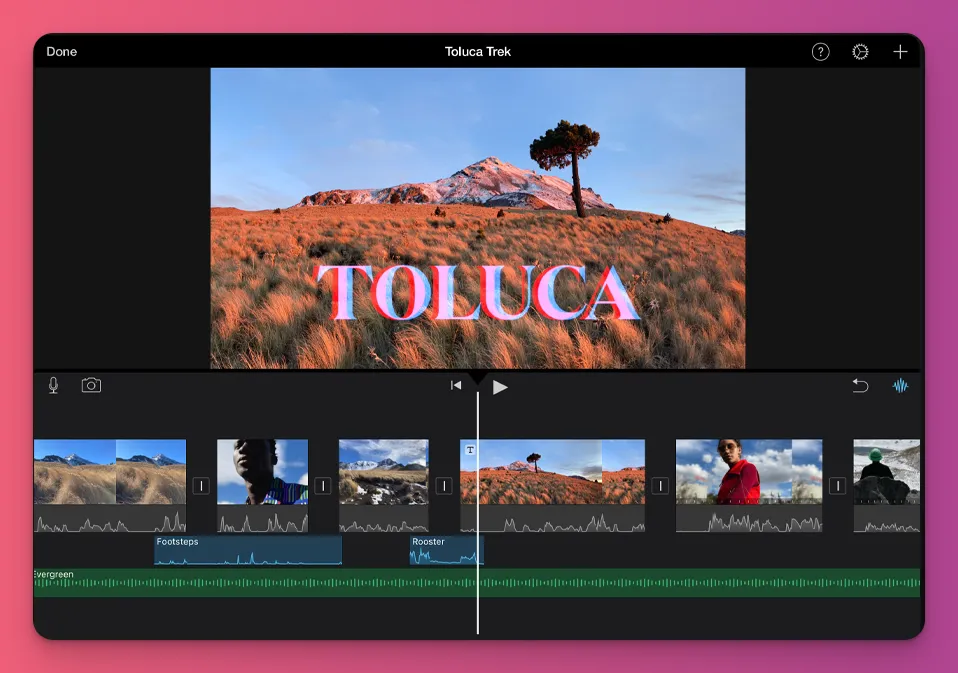
iMovie cuts out all the technical noise from pro suites. So you can focus on the basics of storytelling: cutting, timing, and sound.
It uses a simpler take on the Magnetic Timeline from Final Cut Pro, teaching you non-destructive editing.
And the biggest win is the smooth cross-device flow. You can film in 4K on your iPhone, start a rough cut on the go, then AirDrop to your iPad or Mac to finish with more precise controls.
Unique features:
- Storyboarding Templates — You don’t have to guess the structure of your video. These templates act as a roadmap for different types, helping you nail pacing and storytelling from your first edit.
- Cinematic Mode — If you film on a modern iPhone, you can change focus points and adjust background blur after recording, giving you full creative control over your shot’s depth of field.
- Ken Burns Effect — This tool lets you add smooth pans and zooms to highlight details or keep the viewer’s eye moving, essential for maintaining high audience retention.
- Stabilization — If your handheld b-roll or walk-and-talk shots are shaky, iMovie has a one-click fix that smooths jitters. It prevents motion sickness and makes your vlogs look stable and polished.
- Speed Ramping — Whether you’re crafting a fast time-lapse or a dramatic slow-mo moment, iMovie’s speed controls are simple and direct.
5. Clipchamp
- Price: Free, $11.99/month (Premium)
- Best For: Faceless YouTubers, Reaction videos, Let’s Play gaming content creators
For many new YouTubers on Windows, the hardest part isn’t just editing; it’s design. And Clipchamp fixes this with a sleek, modern interface and professional YouTube templates.
Whether you want a high-energy intro, a clean outro, or social media overlays, you don’t need to be a graphic designer. You can just pick a layout and swap in your branding.
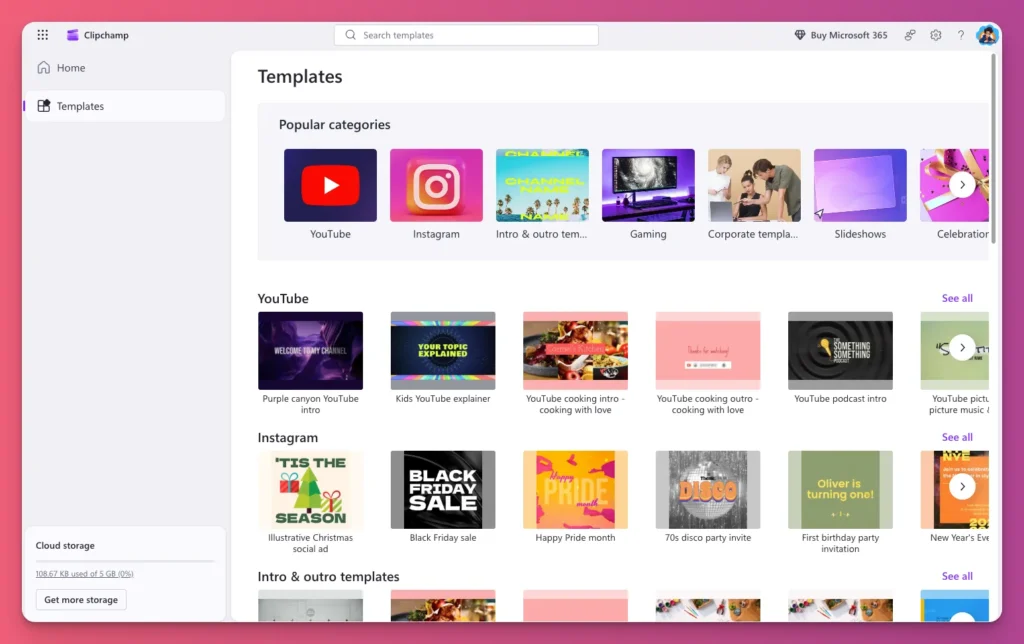
Think of it as Windows’s answer to iMovie, with a freemium twist. The basic version is free, but upgrading to Premium at $11.99/month unlocks 4K exports and a big library of stock assets.
It bridges the gap between a beginner video and a pro production, giving you access to the same tools that make top-tier channels look so clean.
Unique features:
- Lag-Free 4K Gaming Content — You don’t need a top-tier PC to create high-resolution content. Built on web-based technology, you can edit and export in 4K on budget laptops.
- Native Windows integration — If you’re on Windows 11, you already have this tool. No need for downloads or complex updates. It’s the fastest path from filming to editing.
- AI Auto-Captions — You can auto-generate subtitles from your audio and fully customize font, color, size, and position. This is useful for talking-head videos, tutorials, or Shorts.
- AI Voiceovers — You can use AI voices to narrate your video, ideal for faceless channels or tutorials where consistency and clarity matter more than your own voice on every clip.
- Auto-Compose — When you’re short on time, Auto-Compose checks out your footage and puts together an engaging short video, delivering a pro draft you can polish and publish.
6. CapCut Desktop
- Price: Free, $9.99/month (Pro)
- Best For: Gaming content for Shorts, faceless content, and quotes from video creators
While Adobe Premiere Pro and Final Cut Pro remain the standard for professional video editing, CapCut has become the go-to for a more streamlined workflow.
The reason is simple: virality moves fast, and CapCut is built to keep up. In Final Cut Pro, simple edits take several steps. In CapCut, background removal only takes a few easy moves.
For you as a YouTuber, this isn’t about professional vs. casual tools. It’s about choosing to spend hours polishing one file or minutes making content ready to upload.
It began as a mobile app, but the desktop version is a strong tool for making captivating videos. It’s built to ride the trending formats that lead the Shorts algorithm.
Unique features:
- Instant Silence Detection — CapCut finds and trims every “um,” “ah,” or long pause in talking-head footage, turning a 20-minute raw take into a tight, fast-paced edit in seconds.
- Voice Enhancement — It helps you clean up background hiss and boost your vocal clarity, so your audio sounds crisp and ready for YouTube’s loud environment listening.
- Auto-Syncing Subtitles — You can transcribe and sync captions with your speech. Customize shadows and colors to match your brand, so the captions feel native to your production.
- AI Clipper — You can turn one long video into ten viral Shorts fast. The AI Clipper finds the best hooks and punchlines. It gives steady content for your vertical channels with almost no effort.
- Motion Tracking — Graphics and text follow subjects through the frame automatically. So you don’t have to do tedious keyframes for lower thirds, reaction stickers, or product labels.
Related: Best Clipping Software in 2026
7. Vegas Pro 23
- Price: $19.99/month, $219.99 (lifetime)
- Best For: PC gamers, music video creators who need advanced audio track management.
Most editors treat audio as an afterthought. You know, they polish it after the video is done. But for gaming creators who juggle gameplay sounds and live commentary, audio is the edit.
And that is where Vegas Pro stands out as one of the best video editing software for YouTube. Vegas started as an audio editor, and you can feel that DNA today.
You can think of your timeline like a mixing board, adding pro effects like compressors or noise gates to individual tracks with zero friction.
That’s why top YouTubers like PewDiePie rely on editors who master Vegas. For a Let’s Play creator or music video creator like Alex Acosta, Vegas Pro is a high-end sound studio that happens to render video.
Unique features:
- Visual Sound Control — Vegas lets you draw audio envelopes on the clip, dipping game volume while you speak and raising it again with a few clicks.
- Superior Green Screen — No single “Chroma Key” button. Vegas Pros use the Secondary Color Corrector for precise background removal, with deep control over high and low tones.
- Speed Ramping — A favorite for gaming reels, it uses a visual line to speed up or slow down footage, landing slow-mo beats right on the action.
- Crash-Proof Editing — Vegas stays light on resources. Auto-save happens often, and it’s less heavy than DaVinci Resolve, minimizing stutter for mid-range PCs.
- Smart Proxy Editing — When 4K files bog down your PC, Proxy substitutes lightweight previews and Vegas switches back to originals on export.
Related: Music Production Software for Content Creators
8. Filmora 15
- Price: $9.99/month (Basic)
- Best For: Vloggers, Faceless creators, Tutorial creators, Video podcasters
If you need something better than easy, free editing software for YouTube, but pro ones are too complicated, Wondershare Filmora 15 is a good option.
Tech experts like Kevin Stratvert recommend it for its ability to balance simplicity with advanced features. This effectively bridges the gap between ease of use and high-end production.
Yes, it does need a subscription (about $10/month), but that buys you something priceless: speed.
With Filmora’s drag-and-drop setup and over 1,000 templates, titles, and transitions, creating YouTube videos is a breeze.
Instead of spending a long time creating an intro, you can choose a pre-designed template and customize the text.
Unique features:
- Filmstock Integration — Get thousands of free music, sound effects, video clips, and animated graphics right in the app. You won’t have to look for safe stuff or worry about copyright for your YouTube videos.
- Silence Detection — It automatically finds and removes awkward pauses, “ums,” and dead air. Your videos become tighter, more professional. No manual scrubbing through every frame.
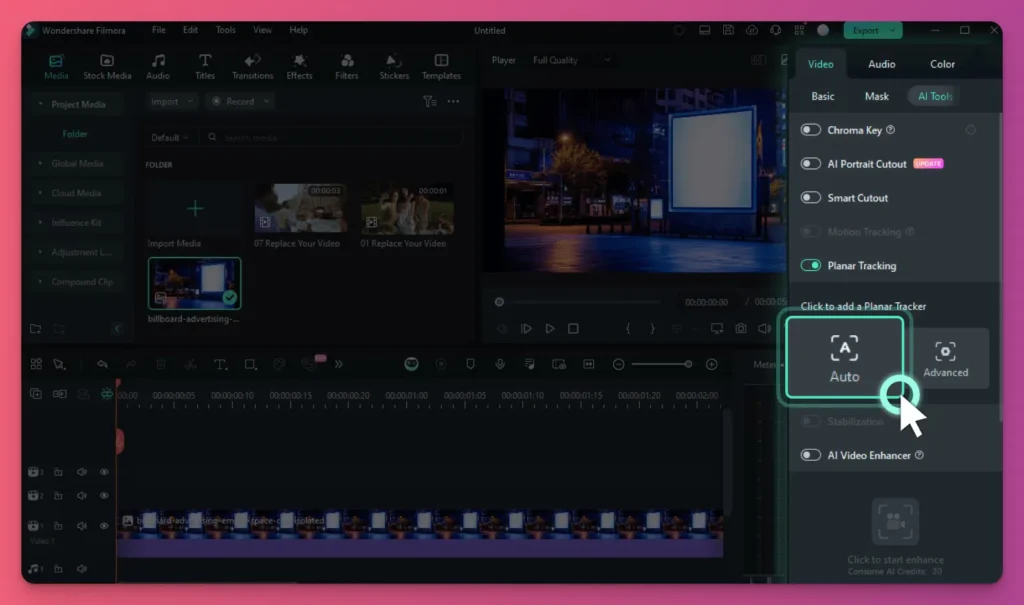
- Smart Cutout — Lasso any person, object, or even complex hair, hit one button, and Filmora removes the background cleanly in seconds.
- Auto Reframe — Turns horizontal YouTube videos into vertical Shorts or TikToks. AI keeps your face or main subject centered and adjusts motion without manual repositioning.
- Auto Subtitle Generator — You can create timecoded captions from your audio track. Style and animate them for gaming videos, tutorials, or muted content.
Related: Best Podcast Software for Editing
9. Movavi Video Editor
- Price: $18.95/month, $99.95 (Lifetime, Video Editor Plus)
- Best For: Casual vloggers, vodcasters, lifestyle video creators, vTubers
Movavi Video Editor is for anyone who wants to spend as little time editing as possible without losing quality.
Many lifestyle vloggers use it for its simple drag-and-drop interface. It takes the tech overwhelm away so new creators actually post.
In a glance, it feels like Filmora 15. The interface is clean and intuitive. The AI features are handy for quick, easy processing.
But what sets them apart is that Movavi Video Editor is lightweight, so it promises better speed with the basics features you need, compared to Filmora.
You read it right. Unlike professional editors that have hundreds of hidden menus, Movavi puts the most important tools right in front of you. You can trim, crop, and add music with zero training.
Unique features:
- Instant AI Subtitles — Audio-to-text conversion that handles accents and technical terms better than most free tools. Customize timing and styling without leaving the timeline.
- Silence Removal — One-click detection finds and cuts awkward pauses, breaths, and dead air, turning raw footage into tight, engaging content without scrubbing through every timeline frame.
- AI Background Removal — Smarter edge detection than most competitors, with sliders to fine‑tune hair, fur, or see‑through objects.
- AI Noise Reduction — Removes certain noise like traffic, fans, and wind while keeping dialogue clear, great for outdoor creators or budget mics.
- Ultra-Fast Rendering — Background processing lets you queue multiple exports while you keep editing, unlike heavier video editors for YouTube that freeze your workflow
Related: Best vTuber Software in 2026
YouTube Video Editing Tools: A Wrap Up
Your YouTube video editing software doesn’t make you a great creator, but it does make the workflow efficient and your content awesome.
Most YouTubers go with Adobe Premiere Pro or Final Cut Pro because they’re the safe bet. But remember you should start with software that fits your current hardware and your skill level.
We hope this helps. If you want tips and tricks for creating content as a YouTuber, subscribe to our blog.
And to earn more from your content, you can join Gank for free to make money from fan donations, merch sales, and special commissions. Ready to join?
FAQs for Best Video Editing Software for Youtube
What software does MrBeast use?
MrBeast mainly uses Adobe Premiere Pro in their YouTube editing workflow. The choice depends on its cloud-based collaboration, which lets many editors work on the same project at the same time. This teamwork is important for the channel’s huge scale and fast editing pace.
Is DaVinci Resolve actually free?
Yes. The free version of DaVinci Resolve has 90% of the Studio features. It gives Hollywood‑level color grading tools for $0, making it the best value around.
The free version tops out at 4K exports and misses a few AI tools, but it’s more than enough for most pro YouTubers.
What is the easiest software for YouTube beginners?
CapCut and Wondershare Filmora are the clearest choices for beginners seeking professional results without a steep learning curve.
CapCut’s great for fast, social-ready edits and auto-captions. Filmora has more than 1,000 templates so you don’t have to start from scratch. Start with these tools, then move to Premiere or Final Cut.